I subscribe to ClientControl.Instance.NewImageViewerControlEvent. In the event handler I create a TextBlock I want to position in one of the corners. To do that I call textBlock.HorizontalAlignment and textBlock.VerticalAlignment. But the textblock is only visisible for combination HorizontalAlignment=HorizontalAlignment.Left and VerticalAlignment=VerticalAlignment.Top. For all other combinations the TextBlock is not visible.
I also tried Canvas.SetLeft, SetRight, etc.. But there combination Canvas.SetLeft and Canvas.SetTop worked.
yes, I took a closer look at the ActiveElementsOverlay sample and there Canvas.SetLeft and Canvas.SetTop are used which also work fine in my code. But when I use e.g. Canvas.SetRight and Canvas.SetTop (for positioning in the right upper corner then the textblock is not visible
We tried to modify the sample and for me it works, could you try to modify the sample only in this regards?
            var textBlock = new TextBlock()
            {
                Text = "This is an element" + System.Environment.NewLine + "that doesn't capture any mouse events",
                IsHitTestVisible = false // this will ensure that the text will not capture any mouse events
            };
            // position is set relative to the top of the video being shown - not the entire view item
            Canvas.SetRight(textBlock,0);
            Canvas.SetBottom(textBlock, 0);
The positioning of the overlay works as expected (e.g. Canvas.SetRight and Canvas.SetBottom) when I drag&drop a camera onto a view item.
When the camera is added to a view item with viewAndLayoutItem.InsertBuiltinViewItem(viewLayoutIndex, ViewAndLayoutItem.CameraBuiltinId, properties) (as shown in the SCInsertCamera sample) the overlay positioning only works for Top/Left.
We tried reproducing the issue but no success so far. Let me explain what we did.
Use 2 plugin samples, Smart Client View and Window Tool and ActiveElementsOverlay with the code that we had posted.
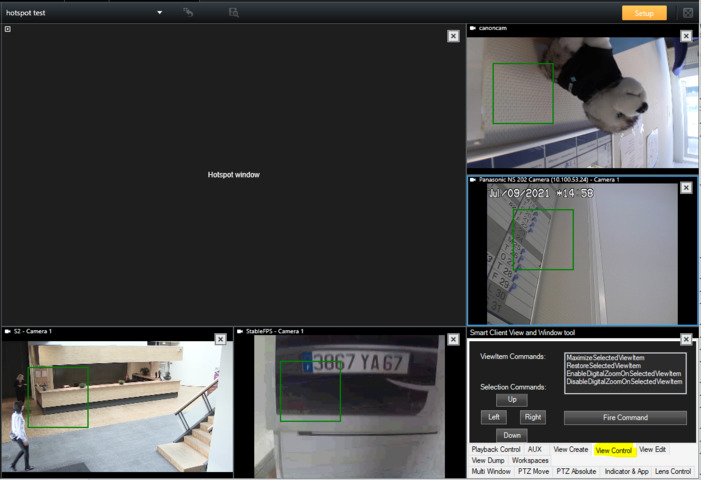
Start Smart Client and create a new 1+5 layout view and assign Hotspot window to the first (biggest) view. Assign Smart Client View and Window Tool to the one of the small windows and rest are for cameras (see below).
First, verified that the code works on camera viewitems.
Second, select View Control tab in SC View and Window Tool (see above yellow colored tab). Select one of the camera views (small view) and click up/down/right/left (in SC View and Window Tool) to see Hot Spot view change.
When you see the Hot Spot view changes, move mouse over the view and see the code still work when the view image changes.
Also we checked the sample code line 231 in ViewEditUserControl.cs in SCViewAndWindow sample and the InsertBuiltinViewItem method works.
I tested with the plugin samples “Active Elements Overlay” and “Smart Client Insert Camera”
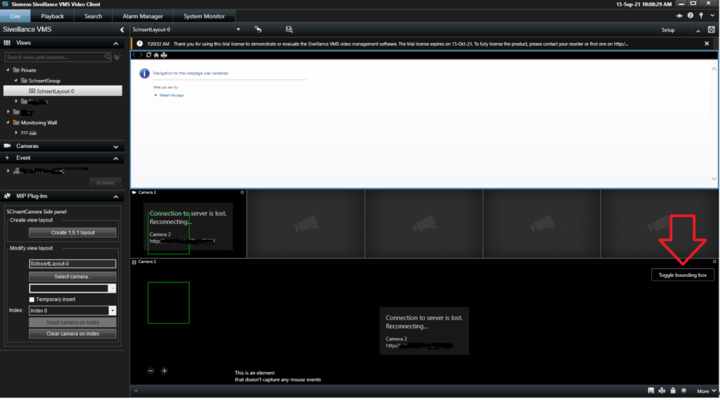
Active Elements Overlay displays the button “Toggle bounding box” with HorizontalAlignment=Right (a setting which causes me the problems)
In SCInsertCamera side panel I did the following:
1: I clicked "Create 1,5,1 layout. This creates a layout with cameras on index 1 and 6. When I hover over the sub view on index 6 the button is displayed as expected (see red arrow in following picture)
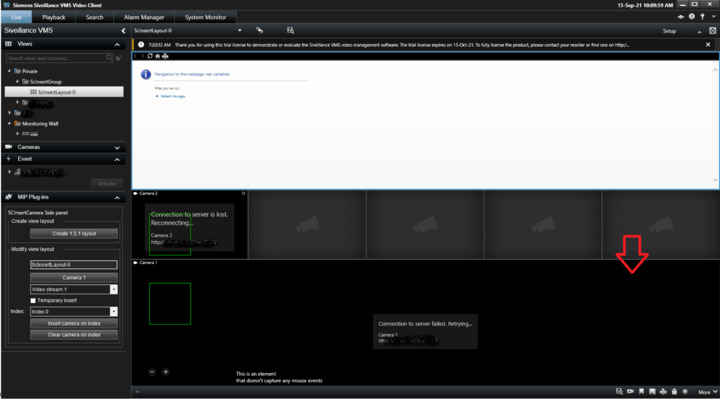
2: in “modify view layout” I selected a camera, a video stream, selected index 6 and clicked “Insert camera on index”. The camera is set on index 6 but the button is not shown when hovering over sub view on index 6 (see following picture)
I am sorry for delayed reply. We tried to reproduce the issue but no success so far even we followed your instructions. Which version of VMS are you using? The most interesting is the Smart Client version, can you please tell me about them? Also, please verify that you use the newest MIP SDK.