Is there a way to add tabs next to built-in tabs (Events, Doors, Cardholders) so we can view other access control types (inputs, outputs, controllers, etc.). Are there any document that I can refer to? Thanks a lot!
No, there is no way to that, it is not supported.
Thank you @Rie Kiuchi (Milestone Systems)
In the document it says ACUnit can be output/input so. If we wish to control these ACUnit in Smart Client, how should we implement the plugin?

Hi @Thuy Pham,
First, if what you are asking for, is controlling the ACUnits from the Smart client, then we have the following integration:
In Smart Client->Access Control tab → Doors, you can view the ACUnits (Doors, Access points and Controllers). Check image below…
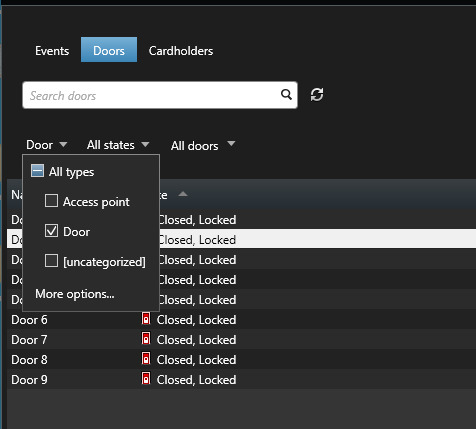
By default the view list is filtered to show just Doors. By clicking on the drop down menu you can customize the filter to show “All types” or some selected types. Check image below… If you choose “More options…” option, you can view and select the types you need.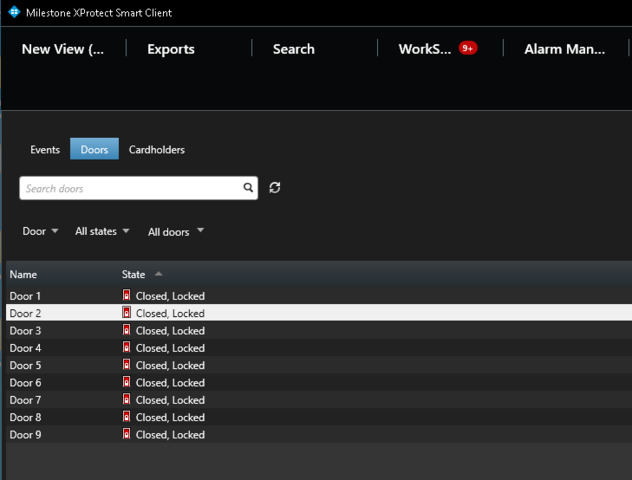
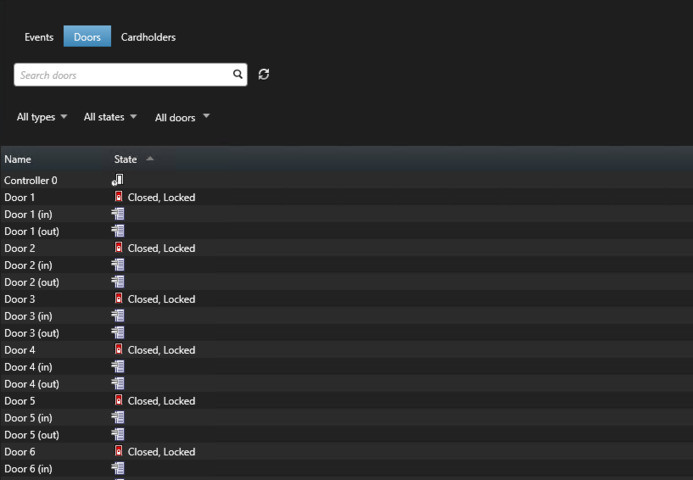
For example in the image below, you can see the view in my Smart Client after selecting “All types” option. I can view the ACUnits Input, Output, Doors and Controllers. But, you can only Lock/Unlock Doors and view related cameras for ACUnits.
On the other hand…
Second, if you are looking into creating a Smart Client MIP Plugin to control the ACUnits:
I’m afraid that this is not currently supported through MIP. However, you can take as a reference the MIP samples for Access Control (Source: https://github.com/milestonesys/mipsdk-samples-plugin/blob/main/DemoAccessControlPlugin/README.md).
Take into account, that this MIP Plugin sample is an Event server MIP Plugin. That said, you have to implement Smart Client MIP Plugin which, should act as a client for your Access Control server.
It would be helpful if you provide more information on what you are aiming to do:
- The current implementation of Access Control in Smart Client is what you needed (Explained first).
- Implementing your own Access Control MIP Plugin for Smart Client (Explained second).
- Something else…
I will be waiting for your answer,
Thank you @Daniel Geruous . I don’t think adding a tab would be an option for us at the moment.
Can we add custom ACUnit types so we can show input/ouput within the Door tab?
Hi @Thuy Pham,
To show input and output within the Door tab, you only need to modify the filters in the smart client access control workspace.
Let’s say you are at the Access control workspace in the Smart Client:
Left click on “All types” filter and select “Access point” from the menu. Check image below:
That would be enough to “show input/ouput within the Door tab”.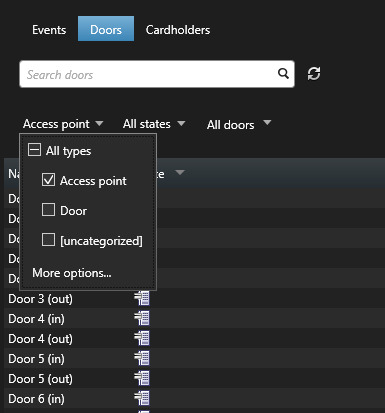
-—
On the other hand, you asked if you can add new custom ACUnit types. The answer to that is:
Yes, adding custom ACUnit types is possible. The documentation on how to do it, step by step, is not available. However, an easy to follow example in the Demo AC plugin sample is provided (here: https://doc.developer.milestonesys.com/html/index.html?base=reference/architecture/ac_stepbystep.html&tree=tree_1.html).
The MIP plugin sample is hosted on GitHub (here: https://github.com/milestonesys/mipsdk-samples-plugin/tree/main/DemoAccessControlPlugin).
For more information on ACUnit types, you can visit:
- https://doc.developer.milestonesys.com/html/mipachelp/class_video_o_s_1_1_platform_1_1_access_control_1_1_elements_1_1_a_c_unit_type.html
- https://doc.developer.milestonesys.com/html/mipachelp/class_video_o_s_1_1_platform_1_1_access_control_1_1_elements_1_1_a_c_unit.html
Given that you are following the MIP plugin sample, I did a small step by step guide that might interest you:
Let’s say we want to add a new custom ACUnit type, you have to do the following:
1 - Add new type id
File “DemoAccessControlPlugin/Constants/Ids.cs”
2 - Add new element type
File “DemoAccessControlPlugin/Constants/Types.cs”
3 - Add new descriptor
File “DemoAccessControlPlugin/SvcRef/DemoApplicationService/Reference.cs”
4 - Add new type converter
The converter will help building the configurations before sending it to the Event Server, the process initiated by the “Refresh button” from the management client plugin.
File “DemoAccessControlPlugin/Configuration/TypeConverter.cs”
5 - Last step, in the “BuildConfiguration” function, you have to add your new type to the element list, which the AC configuration will be build from.
You have to add the type definition and the new type configuration to the element list. The configuration is to be fetched from your Access Control Server first.
Hope this information helps you advance with your project.
Have a nice day,
Thank you @Daniel Geruous . I appreciate your support. Have a nice day.