Hi Zao,
Are you using regular .NET MIP SDK, or you are asking about MIP SDK Mobile ?
Hi Zao,
Are you using regular .NET MIP SDK, or you are asking about MIP SDK Mobile ?
Thanks for your interesting.
I am using MIP SDK Mobile for web developing.
Okay then, I’ll try to explain the workflow.
First you should call XPMobileSDK.startVideoExport()
/**
	 * Starts a new video export.
	 *
	 * @method startVideoExport
	 * @param {String} cameraId - GUID of the camera
	 * @param {Number} startTime - timestamp in UTC, the initial time of the export
	 * @param {Number} endTime - timestamp in UTC, the end time of the export
	 * @param {Function} successCallback - function that is called when the command execution was successful and the result is passed as a parameter.
	 * @param {Function} errorCallback - function that is called when the command execution has failed and the error is passed as a parameter.
	 *
	 * @return {ConnectionRequest} - the ConnectionRequest object
	 */
	function startVideoExport(cameraId, startTime, endTime, successCallback, errorCallback)
This method only schedules export for creation in the server.
When it will be created depends on the server load.
Usually it is started right away, but the creation itself takes some time.
In the result object you could find “exportId”. This is unique identifier of the export in the system.
Using it you could periodically check the server in order to find out if export has completed or not.
For this to happen you should call “XPMobileSDK.getExport()”
/**
	 * Gets an export by id.
	 *
	 * @method getExport
	 * @param {String} id - ID of the export to retrieve (GUID).
	 * @param {Function} successCallback - function that is called when the command execution was successful and the result is passed as a parameter.
	 * @param {Function} errorCallback - function that is called when the command execution has failed and the error is passed as a parameter.
	 *
	 * @return {ConnectionRequest} - the ConnectionRequest object
	 */
	function getExport(id, successCallback, errorCallback)
In the result object you could find “state” property (under Exports/Export).
It has integer value and in short could have following meanings:
0 - Export has been queued for processing
1 to 99 - Export is under processing and the value represents current percentage of readiness
100 - Export has been completed
101 - Export is ready to be downloaded
< 0 - Error occurred during preparation of the export
When “state” become “101” there should be another property named “Link”.
It contains relative path from where the export could be downloaded.
(The field should be combined with mobile server main address. For example “http://:” + ).
Download could be performed with regular AJAX call.
Thank you very much for your help

Hello
How are you?
I checked the avi file on the server when I called getExport() function.
But I think the file size of video is too large.
The size of each avi file is 530 MB.
But they contain only 5 seconds video.
Would you help me to fix this issue?
Thank you
Hi Zhao,
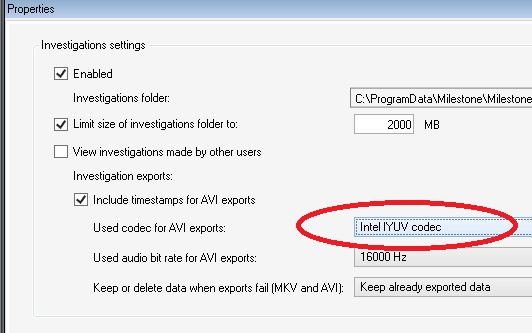
In the Mobile server configuration MIP plug-in of the Management Client can be configured which codec to be used for the AVI export:
By default IntelIYUV code is used, which uses no compression.
Therefore file size is so big.
You can try with Microsoft Video 1 (which is supported on all the Windows OSes).
Also you could try to install third party codec on the Mobile Server machine (restart Mobile server, restart Management client and select it in the drop-down list).
If I remember well codec should have DIrectShow wrapper in order to appear in the list.
Codecs like “XviD” will provide high compression but for the price of time - you will have to wait for export preparation.
Another possibility is to be created MKV export instead of AVI one. If the camera original encoding is H.264, it will be packed into MKV container, without any trans-coding thus saving both time and disk space.
Of course only if MKV file is appropriate for your needs afterwards.
Thanks for your help.
By the way, How can I open this setting dialog?