Hello, I found strange behavior. Whenever I click a menu in my ToolbarPluginWpfUserControl, it leaves a strange blue box. How can I remove it? Thank you.
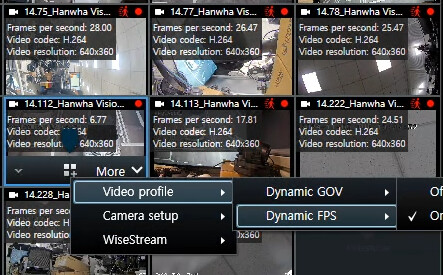

My first idea was to see if I could reproduce this with the Smart Client Toolbar Plug-in sample.
I couldn’t but I actually have an idea that the cause for the empty blue box is similar to what is demonstrated one the toolbarbutton “Show camera name in the plugin UI”. I suspect your code shows a box that is empty and shouldn’t.
This is admittedly guess work on my part but could be a starting point for you to debug / troubleshoot.
Comparing to the sample might be meaningful..
https://github.com/milestonesys
A good read on general debugging..
https://developer.milestonesys.com/s/article/debugging-techniques-for-Smart-Client-plugins
I modified the code in `SCToolbarPlugin` as below
1. ShowCameraNameToolbarPluginWpfUserControl.xaml
<client:ToolbarPluginWpfUserControl x:Class="SCToolbarPlugin.Client.ShowCameraNameToolbarPluginWpfUserControl"
                                    xmlns="http://schemas.microsoft.com/winfx/2006/xaml/presentation"
                                    xmlns:x="http://schemas.microsoft.com/winfx/2006/xaml"
                                    xmlns:client="clr-namespace:VideoOS.Platform.Client;assembly=VideoOS.Platform"
                                    xmlns:controls="clr-namespace:VideoOS.Platform.UI.Controls;assembly=VideoOS.Platform">
    <Grid Background="Transparent" Name="grd">
        <Grid.ContextMenu>
            <ContextMenu Name="featureMenu"/>
        </Grid.ContextMenu>
    </Grid>
</client:ToolbarPluginWpfUserControl>
2. ShowCameraNameToolbarPluginWpfUserControl.xaml.cs
using System.Windows.Controls;
using VideoOS.Platform.Client;

namespace SCToolbarPlugin.Client
{
    public partial class ShowCameraNameToolbarPluginWpfUserControl : ToolbarPluginWpfUserControl
    {
        private string m_cameraName;

        private const string A = "A";
        private const string B = "B";

        public ShowCameraNameToolbarPluginWpfUserControl()
        {
            InitializeComponent();

            ContextMenu con = new ContextMenu();
            MenuItem menuVideoProfile = new MenuItem
            {
                Header = "A",
                Name = A
            };

            var menuItem = new MenuItem { Header = "B", Name =  B };
            menuVideoProfile.Items.Add(menuItem);

            con.Items.Add(menuVideoProfile);

            grd.ContextMenu = con;
            grd.ContextMenu.Visibility = System.Windows.Visibility.Visible;
            grd.ContextMenu.IsOpen = true;
        }

        public string CameraName
        {
            set => m_cameraName = value;
        }

        public override void Init()
        {
            base.Init();
            grd.ContextMenu.IsOpen = true;
        }

        public override void Close()
        {
            base.Close();
            grd.ContextMenu.IsOpen = false;
        }
    }
}
It seems to reproduce and don’t know why the strange mark is not disappearing.
I am not able to figure what you did exactly.
I did something different. I created a new plugin using the MIPPlugin template.
In the XViewItemToolbarPluginInstance I changed the Activate() method:
var show = new ShowCameraWindow();
show.Show();
Then I created a ShowCameraWindow Wpf window. When I then clicked the toolbar button I got the Wpf window and no blue box.
I must suspect that you have some code from the sample that you don’t want. Perhaps you can do the same experiment as I and from that figure what you have from the sample that you shouldn’t have.
I hope you find this useful and constructive advise. Let me know if you solve the issue you see.
We have tried with the solution you have suggested.
However, it won’t work, as per the documentation, The Activate() method will only work for the ToolbarPluginType.Action and we have set the ToolbarPluginType.UserControl
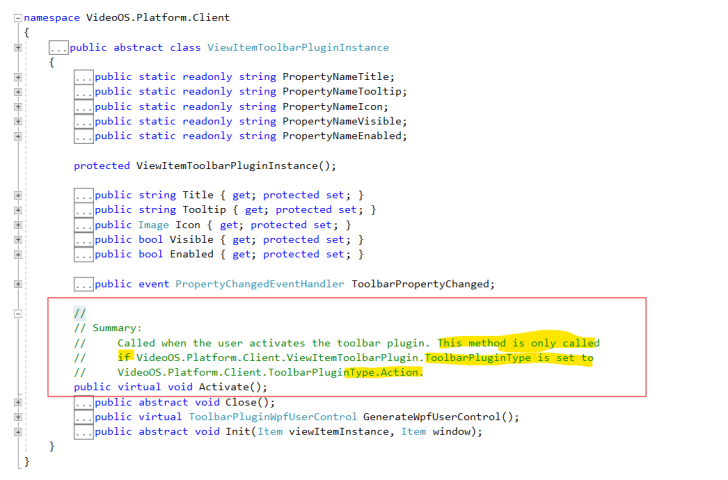
We are using ToolbarPluginType.UserControl
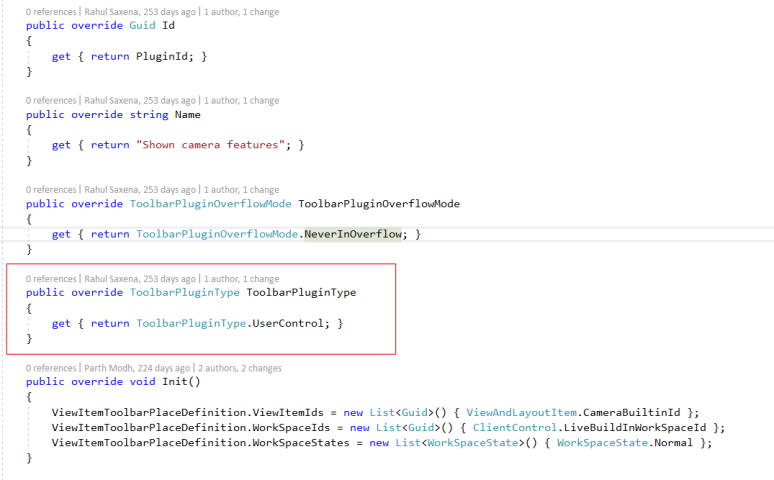
When you use the ToolbarPluginType.UserControl type you do open the User Control which is the small blue box. This is how it is implemented to work. The context menu you make breaks the functionality and the blue box does not close again. The conclusion is that you cannot use it in this way.
There is no ToolbarPluginType.ContextMenu or similar.
However I continued the experiment using ToolbarPluginType.Action. If I do this:
public override void Activate()
{
	ContextMenu con = new ContextMenu();
	MenuItem menuVideoProfile = new MenuItem
	{
		Header = "A",
		Name = A
	};

	var menuItem = new MenuItem { Header = "B", Name = B };
	menuVideoProfile.Items.Add(menuItem);

	con.Items.Add(menuVideoProfile);
	con.IsOpen = true;
}
It works for me without flaw. I really believe that is the solution and you will get exactly what you want.