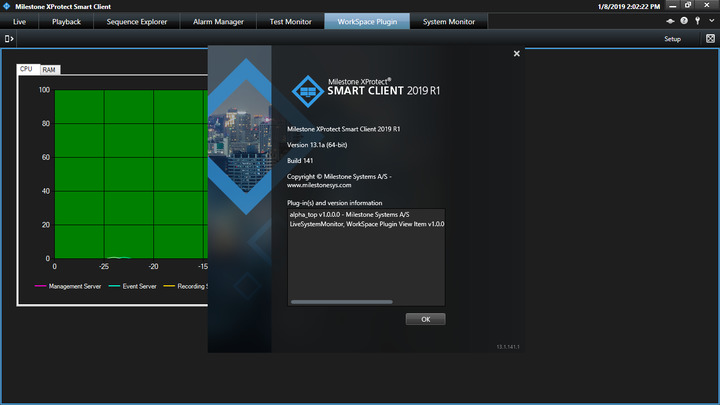
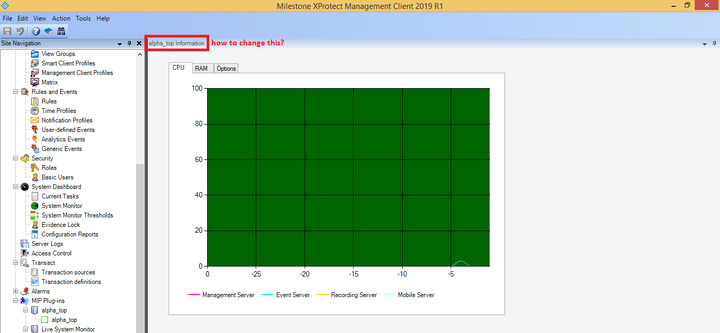
So i’m making a plugin that is supposed to render a graph on both Management Client and Smart Client.
While I managed to re-purpose the plugin’s help page in the Management Client to build the graph, I couldn’t quite do the same for the Smart Client.
Is it possible to render a Windows form into the plugin’s tab?
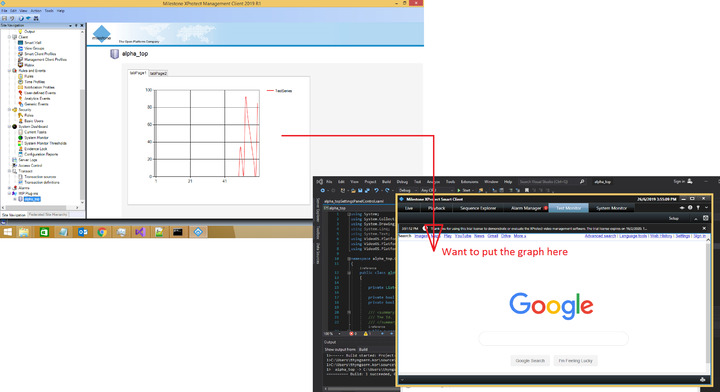
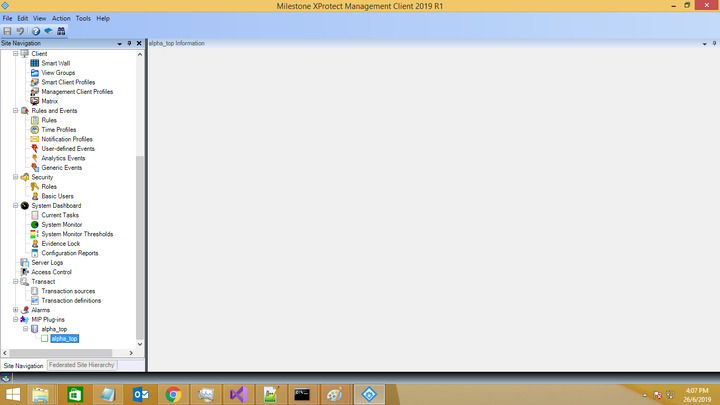
Also, how do I render the Windows Form in Management Client in “plugin Information” tree instead of having to improvise the Help page?
Code snippet from pluginDefinition.cs.
The plugin UI for Smart client is located pluginWorkSpacePlugin.cs.
public override void Init()
        {
            // Populate all relevant lists with your plugins etc.
            _itemNodes.Add(new ItemNode(alpha_topKind, Guid.Empty,
                                         "alpha_top", _treeNodeImage,
                                         "alpha_top", _treeNodeImage,
                                         Category.Text, true,
                                         ItemsAllowed.None,
                                         new alpha_topItemManager(alpha_topKind),
                                         null
                                         ));
            if (EnvironmentManager.Instance.EnvironmentType == EnvironmentType.SmartClient)
            {
                _workSpacePlugins.Add(new alpha_topWorkSpacePlugin());
                /*
                _sidePanelPlugins.Add(new alpha_topSidePanelPlugin());
                _viewItemPlugins.Add(new alpha_topViewItemPlugin());
                _viewItemPlugins.Add(new alpha_topWorkSpaceViewItemPlugin());
                _viewItemToolbarPlugins.Add(new alpha_topViewItemToolbarPlugin());
                _workSpaceToolbarPlugins.Add(new alpha_topWorkSpaceToolbarPlugin());
                _settingsPanelPlugins.Add(new alpha_topSettingsPanelPlugin());

            }
            if (EnvironmentManager.Instance.EnvironmentType == EnvironmentType.Administration)
            {
                _tabPlugins.Add(new alpha_topTabPlugin());
                _toolsOptionsDialogPlugins.Add(new alpha_topToolsOptionDialogPlugin());
                */
            }

            //_backgroundPlugins.Add(new alpha_topBackgroundPlugin());


            //Method to render the graph.
            new alpha_topBackgroundProcess();
        }