Migrate SmartClient plugin from version 2023 R3 to version 2025 R3

We have an old Forms based SmartClient plugin running in SmartClient version 2023 R3.

I’m trying to reimplement this plugin to support SmartClient version 2025 R3, based upon the WPF framework.

The plugin simply opens a popup dialog with a number of live video feeds and one replay feed:
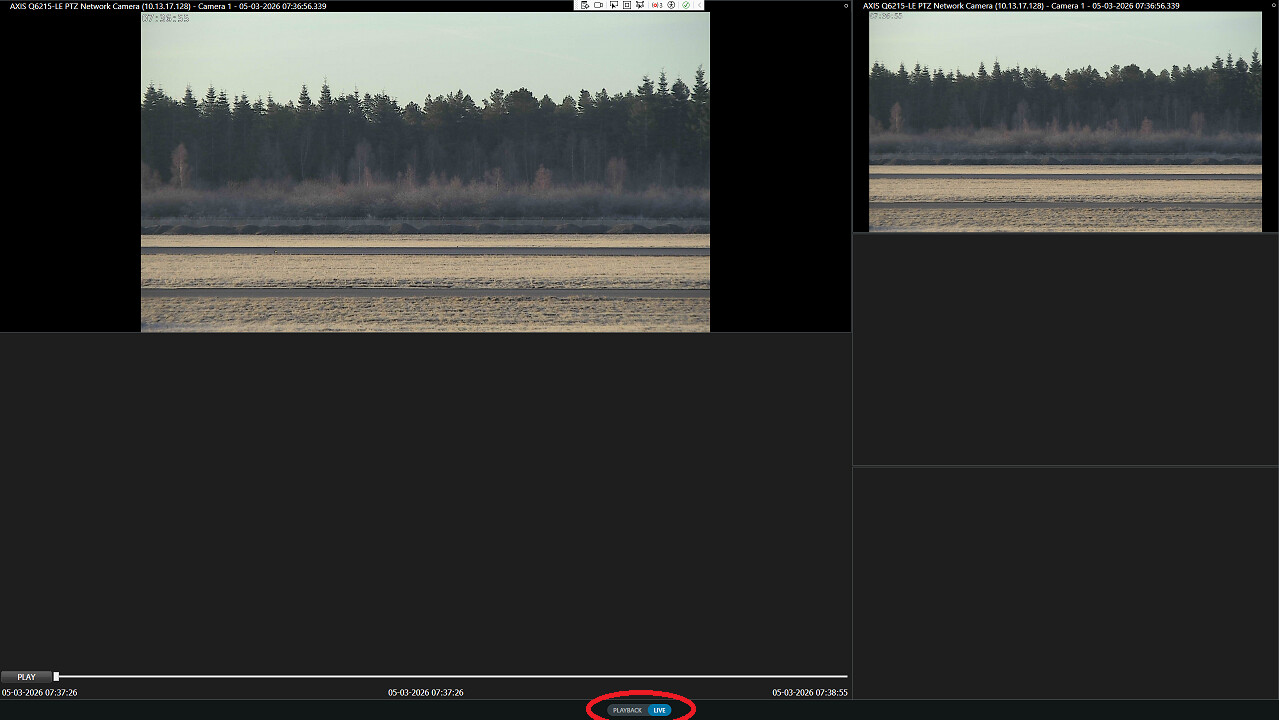
All feeds are displayed in ImageViewerWpfControl controls, nested within one ViewItemWpfUserControl (one UserControl contains all ImageViewer controls).

Playback in the lower left control is controlled by a dedicated Playback controller (instantiated with ClientControl.Instance.GeneratePlaybackController()).

This controller is always in replay mode, manually controlled by the play button and slider controls.

The other four controls are controlled by one shared playback controller (again instantiated with GeneratePlaybackController). These feeds are pr. default in Live mode. Toggling between live/replay mode is controlled programatically by an integration to our own application.

When our application enters replay mode, the main smartclient and popup dialogs are forced into replay mode. We do this by requesting the smartclient to enter replay mode (by issuing the ShowWorkSpaceCommand “replay workspace” to the main smartclient. The views in the popup dialog are then synchronized to the main smartclient, by assigning the main replay controller (null value) to the ImageViewer controls in the popup dialog.

If the main smartclient manually enters replay mode, the popup display should stay in live mode.

The first problem I encountered is the display of the Replay/Live toggle button (see attached screendump):

We set the PlaybackSupportedInFloatingWindow=false in the MultiWindowCommand we use to open the dialog.

In the old version, it did hide the toggle button, no matter whether we opened the dialog as a floating dialog or a full-screen dialog.

In the new version, the toggle button disappears, when we open a floating dialog but it stays visible when we open a full-screen dialog.

As described above, we want to open the dialog in full screen mode, without the toggle button being displayed.

The next problem I encountered was that I am not able to enable live replay of the feeds in the popup dialog. As I read your documentation, this should be possible by sending the MessageId.System.ModeChangeCommand, with the argument Mode.ClientLive to the replay controller, assigned to these feeds:

// Summary:
// Can be sent to the individual PlaybackController in the .Net Library MIP and
// Smart Client Environment when the application want to change mode for one PlaybackController
// and all related ImageViewerControl’s.
// The destination parameter must contain the FQID of the PlaybackController that
// should handle the command. The VideoOS.Platform.Messaging.Message.Data property
// should be one of the values in VideoOS.Platform.Mode.

But without success.

As an alternative, I tried to build the same dialog, not as a popup opened with the MultiWindowCommand but based on a top-level VideoOSWindow dialog.

This is actually our preferred solution, because we don’t want to have the possibility to enable the toolbar in the popup and through that way change view in the popup.

But again, enabling the live replay did not work.
I would like to reproduce the observations, but I am not sure my understanding from reading your description is deep enough.
Can you please share a minimal implementation plugin (source code) that I could use to reproduce the issue? It will allow me to evaluate your code and to reproduce the issue.

I have an idea that there are two issues, potential bugs:

  1. Inability to switch to Playback mode
  2. Full screen behavior, hide the toggle button

Please separate the two so that we can chase a solution for each independently.

You’re assumptions about my problems are correct.

Bullet 2: If we take you’re bullet two first, about hiding the toggle button, then I open the popup dialog using the following piece of code:

var groupItem = (ConfigItem)ClientControl.Instance.CreateTemporaryGroupItem("CIP");
groupItem.Properties["Visible"] = "False";

var viewItem = groupItem.AddChild("Spot View", Kind.View, FolderType.UserDefined);

ViewAndLayoutItem viewAndLayoutItem = (ViewAndLayoutItem)viewItem.AddChild("Spot", Kind.View, FolderType.No);
viewAndLayoutItem.Layout= new Rectangle[]
{
    new Rectangle(0, 0, 1000, 1000)
};

viewAndLayoutItem.Name = "Spot View";
viewAndLayoutItem.InsertViewItemPlugin(0, _spotViewPlugin, new Dictionary<string, string>());
viewAndLayoutItem.Save();
groupItem.PropertiesModified();

var popup = new MultiWindowCommandData();
popup.Window = Configuration.Instance.GetItemsByKind(Kind.Window)[0].FQID;
popup.View = viewAndLayoutItem.FQID;
popup.PlaybackSupportedInFloatingWindow = false;

popup.Screen = Configuration.Instance.GetItemsByKind(Kind.Screen)[message.ScreenIndex].FQID;
popup.MultiWindowCommand = MultiWindowCommand.OpenFullScreenWindow;

var popupwindow = EnvironmentManager.Instance.SendMessage(new Message(MessageId.SmartClient.MultiWindowCommand, popup), null, null);

My assumption is that it is the setting of:

popup.PlaybackSupportedInFloatingWindow = false;

that (indirectly) controls the appearance of the live/playback toggle (that was the behaviour we saw in version 2023 R3 version).

What we observe now, is that it has the expected behaviour when we issue the MultiWindowCommand.OpenFloatingWindow, but if we use MultiWindowCommand.OpenFullScreenWindow (as in the code sample), the toggle button is visible.

Bullet 1, not able to toggle between live/playback mode (on a manually created PlaybackController).

I try to set the PlaybackController in Live mode, using the following code snippet:

        // Set playback controller in live playback mode
        EnvironmentManager.Instance.SendMessage(new Message(MessageId.System.ModeChangeCommand,
            VideoOS.Platform.Mode.ClientLive), _livePlaybackControllerFQID);

In the meantime I have looked further into your documentation which revealed that the documentation of the VideoOS.Platform.Mode enumeration, indicates that it is not possible to change playback mode of a PlaybackController from a SmartClient plugin:

// Summary:
// The Mode the application is running right now. When the Mode changes, the message
// System.ModeChangedIndication is send with data set to the new Mode. Note: The
// current Mode is always available in: EnvironmentManager.Instance.Mode Note: Do
// not use Mode in Smart Client plugins. Instead use ShownWorkSpace, WorkSpaceState
// and associated messages.

If I am right in that assumption, then it seems to me that the mode (Live/Replay) is bound to the view/window and not to the individual replay controller (when running things from the SmartClient plugin) - and thus the description of the ModeChangeCommand is wrong (if it is correct that it cannot be used from a Smart Client plugin).

Finally, if we open the dialog using a ‘standard’ WPF Window (VideoOSWindow), from the plugin, we observe the same problem, the PlaybackController stays in Replay mode. If we issue the ModeChangeCommand towards the controller, while the controller is replaying, it switches state into stopped.

I have implemented a scaled down version of our plugin, which shows the problems I tried to describe above.

ExamplePlugin.zip (18.0 KB)

Our ultimate goal is to create a plugin, which opens a full screen popup, controlled by our integration to milestone.

The popup dialog should only display the video controls, implemented by the plugin: e.g. no Milestone toolbar or Milestone Live/Replay toggle.

The video controls playback/live state must be controlled by our application.

Pr. default they should be in live playback mode, but in the case where the integration sets the main Milestone dialog and the plugin in replay mode, they should all be in replay mode, controlled by the controller on the main Milestone application.

If the main Milestone application selects playback mode, the popup should state in replay mode.

In the old version (Windows Forms based, running on Milestone SmartClient version 2023 R3), we obtained this by opening the dialog using a MultiWindowCommand, setting PlaybackSupportedInFloatingWindow=false in the request.

This solved our requirements almost (and sufficient), but didn’t prevent the user from opening the toolbar, by moving the mouse to the top of the dialog.

In the 2025 R3 version this behaviour has changed. It is (apparently) not possible to hide the Live/Replay toggle button in full screen mode. If we don’t open the dialog in full screen mode, the live/replay button disappears but the toolbar is displayed.

Furthermore the semantics of setting the ImageViewerWpfControl.PlaybackControllerFQID to null has (apparently) changed. In the 2025 version it use the popup windows replay controller and not the main Milestone dialog playback controller (sometimes…, behaviour seems to be a little random)

In the plugin folder there is a plugin.config file, where you can toggle between the different scenarious I have described above

Thank you, this makes it so much easier for me.

Please verify my understanding: In the older winforms implementation putting PlaybackSupportedInFloatingWindow=false would make sure that the control “Playback/Live” was not present, correct?

Testing with your test app I can clearly see that PlaybackSupportedInFloatingWindow seems to have no effect, that it is behaving the same no matter the value is true or false. I will report it to Milestone Development.

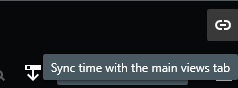
When you have full screen view, if you then push the “Toggle full screen mode” button you see a link button, with the tooltip text “Sync time with the main views tab”, toggling this the timeline control will disappear, and now using the timeline control of the main window will navigate in time.

SC-fullwindow-link-button

I am a bit in doubt but assume this is what you refer to as Milestone dialog playback controller. To me the behavior does not seem random but something I can fully control. If you still believe the behavior is surprising or even erratic please elaborate. Perhaps a screen capture will help my understanding.

Sorry, I missed your update..

And yes, your understanding of the PlaybackSupportedInFloatingWindow behaviour is correct. The change in ‘behaviour’ is most likely caused by the fact that in the old version, the Playback/Live buttons were part of the toolbar, now it’s a control on it’s own.

Solving that issue will be enough for us, to complete the migration - but as I also stated, our ideal solution will be, if we were able to completely disable/hide all Milestone controls from the popup and then programmatically control live/playback on the Replay controller. Now it seems like live/replay is controlled by the window component. If I look into your code samples it seems like the commands to toggle between live/playback are directed to the window entity and not the replay controller (when running as a SmartClient plugin).

From the comments in your code, I assume that it works as expected (by addressing the replay controller) if we implement a standalone C# application - which we don’t want to do, we still need the main functionality of the SmartClient monitor.

We currently have a Smart Client candidate that includes a fix and is undergoing testing. Would you be interested in testing this version as well? If the testing is successful, the next step would be for Milestone to release a Smart Client with the fix included. I’ll share an update once it becomes available.

Yes, immediately when it is ready :slight_smile: