Please explore ConfigAPI Client sample -
Yes, I found that example, it is very generic, I am trying to reverse engineer it to see how it pulls the IP, but have failed so far. Was looking for direct documentation on variables to look for (THE NAMES). This is very poor documentation,and the example isn’t even commented. Please direct me to the documentation on the IP address object.
We would be fine with just using the GUID to access the camera but we have no idea how these are generated in case we need to replace a camera in the system, we want it to know that it is the same camera
Plus accessing the cameras by IP and channel gives a more readable setup
First, please start Config API Client sample. Click Recording Servers – Hardware – (your target hardware), then you will be able to see Address. Also click Cameras - (your target camera) then you will see channel.
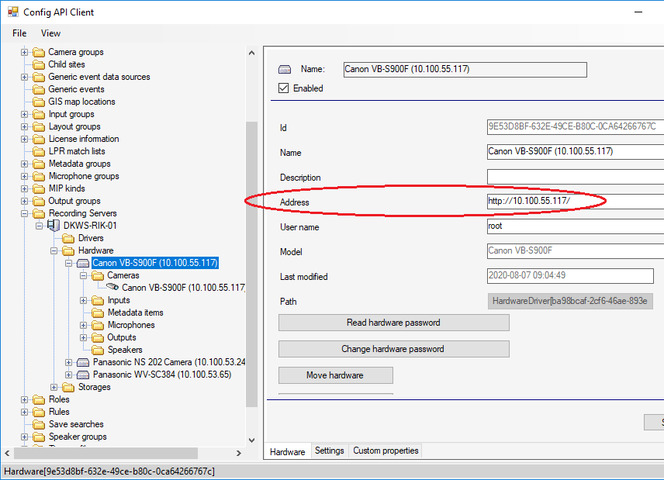
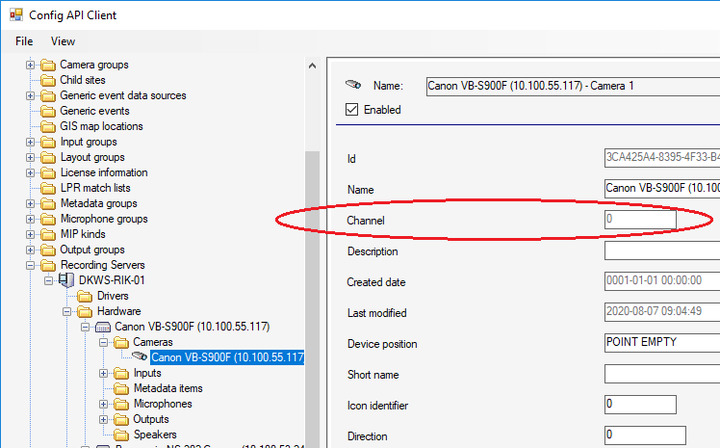
The Configuration API as used in the Config API Client can be replaced by simpler code using strongly typed classes, I recommend doing so, I will illustrate this.
Please see following code, it indicates how to get Address and Channel via Configuration API strongly typed classes.
// This is the regular Item of the camera as supported by the Configuration class, you probably have this “Item” already
VideoOS.Platform.Item cameraitem = Configuration.Instance.GetItem(new Guid("3CA425A4-8395-4F33-B411-7B5FF0C8AC9A"), Kind.Camera);
// This is the camera item as supported by the strongly typed configuration API
// using VideoOS.Platform.ConfigurationItems
Camera camera = new Camera(cameraitem.FQID);
var channel = camera.Channel;   // Get channel
Hardware hardware = new Hardware(EnvironmentManager.Instance.CurrentSite.ServerId, camera.ParentItemPath);
var IPAdress = hardware.Address;    // Get IP address
When using the strongly typed classes it is still very much recommended to use the Config API Client sample to discover what information is there, what classes to use and how they relate to each other.
Thank you, I will give that a try; it certainly should be added to your SDK user manual because it is completely hidden on how to do this seemingly common task. In order to pull the camera item FQID we ended up pulling in the entire list of names and FQIDs associated with those names for all the cameras we have using this (in case anyone else needs this). Once you have the FQID then you could proceed with line 5 from the code above:
//dictionary of cameras matching camera number (in a string) to camera FQID
Dictionary<string, FQID> m_cameraFQIDs=null;

        private void FindAllCameras()
        {
            Debug.WriteLine("FindAllCameras()");
            //get list of all cameras
            List<Item> list = Configuration.Instance.GetItemsByKind(Kind.Camera);

            // For each root level Item, check the children. We are certain, none of the root level Items is a camera
            foreach (Item item in list)
            {
                CheckChildren(item);
            }
        }

        private void CheckChildren(Item parent)
        {
            List<Item> itemsOnNextLevel = parent.GetChildren(); // This causes the configuration Items to be loaded.
            if (itemsOnNextLevel != null)
            {
                foreach (Item item in itemsOnNextLevel)
                {
                    // If we find the camera we want, remember it and return with no further checks
                    // It must have Kind == Camera and it must not be a folder (It seems that camera folders have Kind == Camera)
                    if (item.FQID.Kind == Kind.Camera && item.FQID.FolderType == FolderType.No)
                    {
                        // Does the name match the camera name we are looking for? Here we accept a non-perfect match
                        Debug.WriteLine("Camera: " + item.Name + "\tFQID: " + item.FQID.ToXmlNode().InnerXml);
                        String cameraId = item.Name.Split('.')[0];
                        Debug.WriteLine("cameraId: " + cameraId);
                        try
                        {
                            //add the camera to the dictionary of camera Ids and FQID s for lookup later
                            m_cameraFQIDs.Add(cameraId, item.FQID);
                        }
                        catch (ArgumentException)
                        {
                            //there was a duplicate camera id returned so display error and exit
                            if (m_viewerForm == null)
                                return;

                            System.Windows.Forms.MessageBox.Show("An camera with with Id = "+ cameraId+" already exists.");
                            //m_viewerForm.Close();
                        }
                    }
                    else
                    {
                        // We have not found our camera, so check the next level of Items in case this Item has children.
                        if (item.HasChildren != VideoOS.Platform.HasChildren.No)
                            CheckChildren(item);
                    }
                }
            }
        }
Hi Ray,
Here’s the algorithm I usually use to enumerate through items recursively using a Stack. Note that in this case I’m using ItemHierarchy.SystemDefined since the default is ItemHierarchy.Both which is guaranteed to result in you enumerating through duplicates, and while SystemDefined is guaranteed to enumerate through every device the user has permission for. The UserDefined hierarchy will enumerate through the Camera Group hierarchy instead of the “Recorder/Hardware/Camera” system hierarchy.
private static IEnumerable<Item> EnumerateCameras()
{
    var stack = new Stack<Item>();
    Configuration.Instance.GetItemsByKind(Kind.Camera, ItemHierarchy.SystemDefined).ForEach(stack.Push);
    while (stack.Count > 0)
    {
        var item = stack.Pop();
        if (item.FQID.FolderType == FolderType.No)
        {
            yield return item;
        }
        else
        {
            item.GetChildren().ForEach(stack.Push);
        }
    }
}
And the following example is a possible alternative to using the Configuration API to discover the camera IP addresses. It uses the MessageCommunication class to subscribe to the GetIpAddressResponse message, and transmit a GetIpAddressRequest message. I wrote it just now so it may not be perfect but it appears to work and it should hopefully be thread safe (by serializing requests).
internal class CameraIpResolver : IDisposable
{
    private readonly MessageCommunication _messenger;
    private readonly ManualResetEventSlim _signal = new ManualResetEventSlim();
    private readonly object _lock = new object();
    private readonly object _filter;

    private string _cameraIp = string.Empty;

    public CameraIpResolver(ServerId serverId)
    {
        MessageCommunicationManager.Start(serverId);
        _messenger = MessageCommunicationManager.Get(serverId);
        _filter = _messenger.RegisterCommunicationFilter(GetIpAddressResponseHandler,
            new CommunicationIdFilter(MessageId.Server.GetIPAddressResponse));
    }

    public string GetIp(FQID fqid)
    {
        lock (_lock)
        {
            _cameraIp = string.Empty;
            _signal.Reset();
            _messenger.TransmitMessage(new Message(MessageId.Server.GetIPAddressRequest, fqid), null, null, null);
            _signal.Wait(TimeSpan.FromSeconds(10));
            return _cameraIp;
        }
    }

    private object GetIpAddressResponseHandler(Message message, FQID destination, FQID sender)
    {
        _cameraIp = message.Data as string;
        _signal.Set();
        return null;
    }

    public void Dispose()
    {
        _messenger.UnRegisterCommunicationFilter(_filter);
        _messenger?.Dispose();
    }
}
So to use this you would do something like…
var ipResolver = new CameraIpResolver(Configuration.Instance.ServerFQID.ServerId);
foreach (var camera in EnumerateCameras())
{
    var ip = ipResolver.GetIp(camera.FQID);
    Console.WriteLine($"{camera.Name} ({ip})");
}
And here’s a risky one-liner to get the IP using the strongly typed Camera/Hardware objects which use the Configuration API under the hood.
foreach (var item in EnumerateCameras())
{
    var ip = new Hardware(item.FQID.ServerId, new Camera(item.FQID).ParentItemPath).Address;
    Console.WriteLine($"{item.Name} ({ip})");
}