Hi All,
I’m using Onvif Bridge to connect my recording server with XProtect 2019 Pofessional+ appliance.
Live video works correctly, no matter if it’s only H.264.
I have problems with recorded video. Could not extract any chunk from repository when trying to specify datetime start and stop.
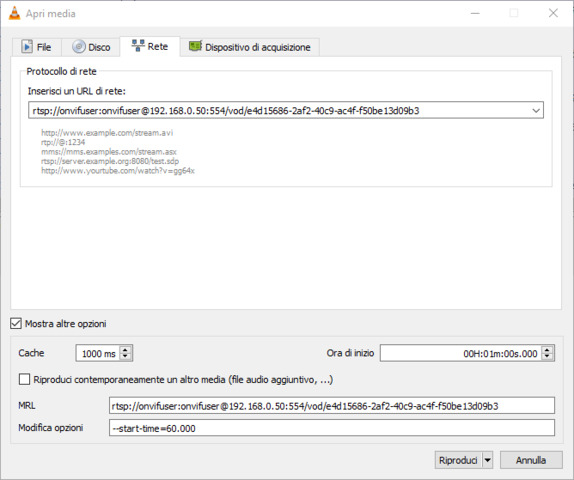
I’m using VLC 3.0.17 in windows, command line version specifing parameters “–start-time=X” and “–stop-time=Y” where X and Y are number of seconds from start of recording.
parameter “–start-time=X” seems to work perfectly but when I use “–stop-time” VLC closes unexpectly.
Q1: What’s wrong with these parameters?
Q2: Will be there the possibility to specify Time Range (Start and Stop) directly in RTSP URI?
Thank You.
Hi,
RTSP supports playing in range by providing Range header (it is not part of the uri). For more info pls see RTSP ref. There is some samples in the Open Network Bridge manual as well (https://doc.milestonesys.com/latest/en-US/standard_features/sf_onvifbridge/onvif_usingonvifclientstovi.htm?tocpath=Third-party%20integrations%7CMilestone%20Open%20Network%20Bridge%7COperation%7C_____1)
For the vlc case - I would advice you to make a wireshark trace and check if the range header is send out correctly by vlc.
Kind Regards,
Svetlana
You could also try with older VLC versions.
Hi All,
Thanks to @Petar Vutov and @Svetlana Ulyanova for support.
I’m trying to use several VLC Windows versions:
3.0.17
3.0.16
3.0.0
2.8.8
and specifying (in windowed mode and command line mode) a start range at 60 seconds and a stop range at 120 seconds.
In all cases and version, with wireshark I see that the PLAY command has “Range: npt=0.000”.
Only in a single unique test I had “Range: npt=60.000” but I didn’t save Wireshark session.
In VLC 2.2.8 I can only specify start range but also there is no response in Range parameter.
Have You got a VLC version that for sure is issuing correctly range parameter?
Thanks in advance.
Mario.
Hi Mario,
If I remember well, VLC is sending two PLAY commands one after another.
The first one is with “Range: npt=0.000” and the second one is with the correct (configured) npt time.
Hi Petar,
You are right, VLC sends 2 “PLAY” commands (and don’t understand why). The first one has “Range: npt=0.000-”; after near 1 second VLC sends the second “PLAY” with “Range: npt=60.000-” and starts streaming correctly.
When in VLC I use “:start-time=X” and “:stop-time=Y” (where Y > X) VLC sends as usual 2 PLAY commands, expecting that second one has parameter “Range: npt=60.000-120.000”… but it’s wrong.
Second Play command has “Range; npt=60.000-” and suddendly it sends an immediate “TEARDOWN” command.
At this point I don’t know if this is an issue of VLC (back to 3.0.17) or a problem regarding ONVIF Bridge (2019 R2).
Hi Mario,
I cannot answer that, but you could try to upgrade your ONVIF Bridge to the newer Open Network Bridge, and see if there is difference. After update you should set-up the allowed users in the tray controller instead of the MC.
Thanks @Petar Vutov for suggestion.
Could You confirm that I can upgrade “Onvif Bridge” to “Open Network Bridge” cosidering that My XProtect version is “2019 R2 Professional+”?
Maybe I have to upgrade XProtect to 2022 version?
Thanks.
Usual backward compatibility policy of the ONB is 2 years back.
So you should be able to upgrade to 2021 at least. But if I were you I would give 2022 a try.
Of course, first on a test system (aka dedicated new VM for example).
Hi All,
I’ve upgraded “ONVIF Bridge” to “ONB” firstly trying with 2022 R2 version but did not work properly.
Then I tried to install 2021 R2 (compliant with 2 years back compatibility policy) and seems to work but with these limitations:
- My XPRotect VMS server has 14 active cameras. Some of them in H.264 and the others in H.265. Reading the manual I was confident that I could start RTSP live streaming for all cameras. Unfortunately I saw that if I configure H.265 profile in ONB configuration I can see ONLY h.265 cameras; If I configure h.264 profile, I can see only h.264 cameras. I cannot find a way to see all cameras with both codecs. To see all I should set all camera codecs to H.265 or H.264 but cannot because not all of them support both codecs. Also, I did not understand the meaning of checkboox “Use configuration from cameras”. I believed that this checkbox, once enabled, could solve all codec problems but did not work.
- As found in “Onvif Bridge 2019” when I try to access recorded files with VLC, specifying START-TIME and STOP-TIME, VLC stops sending TEARDOWN. It works only with START-TIME parameter.
Any suggestion appreciated 
Thanks in advance.
Mario.
Hi Mario,
You should be able to make all cameras to work, despite the difference in the codec they are using.
As you mentioned, you should check “Use configuration from cameras” and restart the ONB (in order to take place immediately). Also with that option ONB will try to read configuration from the cameras device driver settings. Usually it tries to read property named “codec” or “encoding”. If that fails, it tries to read the stream name. You could change it to something containing the codec in it. For example “Video Stream 1 - H.265”.
As for the seconds comment, I’m not sure I follow you well.
Btw. What exactly doesn’t work when you tried ONB 2022 R2 ?
Hi Petar,
your suggestion was very helpful. Stream names were set by default using Italian language (Flusso Video 1) and maybe this was the issue.
I translated all names in English using “Video Stream 1 - H.264” and “Video Stream 1 - H.265” respectively for H.264 and H.265 cameras. Now RTSP streaming works correctly.
Regarding ONB 2022 R2 I was not able to see any streaming. Despite I created basic users and set the correct role for them, all players reported message “Unauthorized”. Going back with 2021R2 it worked at first attempt. Next week I’m going to reinstall and make other tests.
Btw now I’m going to test RTSP playback with time ranges. If does not work I’m going to ask to Support Community.
Thank you so much.
Mario.
Glad to “hear”, Mario 
Just for the sake of completeness, you could keep the names as you want, just need to add the codec somewhere in it.
“Flusso Video 1 - H.265” as well as “H.265 - Flusso Video 1” should both do the job.
Hi All,
I’m going to use with ONB the multi streaming option for enabled cameras.
For each one, I setup 2 streams: High Quality and Low Quality.
I was trying to access them specifiyng in URI rtsp the stream id, for example:
rtsp://<milestone_server>/live/<camera_guid>/0 (HQ Stream)
rtsp://<milestone_server>/live/<camera_guid>/1 (LQ Stream)
but I cannot see them simultanously.
More in detail:
 If I set “LIVE” to stream “Video Stream 1” the only rtsp URI that works is
rtsp://<milestone_server>/live/<camera_guid>/0
If I set “LIVE” to stream “Video Stream 2” the only rtsp URI that works is
rtsp://<milestone_server>/live/<camera_guid>/1
There is no way to set both for live streaming with ONB=
I think that there is something to configure in Streams configuration inside Management Console but I could not find it.
Is there a tutorial or an “How to” configure multiple streams with ONB?
Thanks in advance.
Mario.
Which product and version do you use ?
Mario,
You should be able to “check” Live on both streams. If you are not - your license probably permits it. As far as I remember multi-streaming is available only in Corporate and Expert (top two licenses).
I could be wrong, in the latest comparison chart it is available in all but the free products.
https://www.milestonesys.com/video-technology/platform/product-index/
This however could be different for the older versions. So yes, what is the version of the VMS you are using ?
Hi, @Petar Vutov and @Svetlana Ulyanova
The VMS version is “XProtect Professional+ 2019 R2”. If this confirms the limitation I’m going to ask my chiefs to request an upgrade to Corporate, if possibile.
Seems my initial assumption is correct.
In 2019 R2 “Multi-live streaming” is available only in Expert and Corporate.