I want to build and run the VPS on Windows . I followed these instuctions:
https://github.com/milestonesys/mipsdk-samples-vps/tree/main/VPSToolkit
I couldn’t build the mipsdk-samples-vps/VpsCommon/VpsCommon.sln because the VpsCommon folder does not exist.
Could you provide us please with the complete VPSToolkit folder?
Thank you.
Before I ask around at Milestone could you please tell me..
Might you need this? - https://www.nuget.org/packages/MilestoneSystems.VideoOS.VpsCommon
Hi, thank you for your response.
This package is already installed.
VpsCommon has been replaced with a NuGet package.
Can you give more information about the error you are getting
Hi, thank you for your response.
After running these commands in the terminal :
set GST_DEBUG=2
set GST_PLUGIN_PATH=.
dotnet VPService.dll – -log_debug
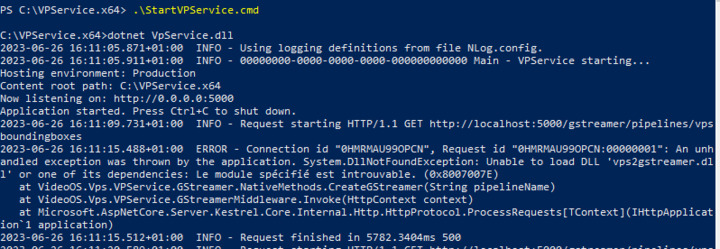
I got this error:
An unhandled exception was thrown by the application. System.DllNotFoundException: Unable to load DLL ‘vps2gstreamer.dll’ or one of its dependencies: Le module spécifié est introuvable. (0x8007007E)
at VideoOS.Vps.VPService.GStreamer.NativeMethods.CreateGStreamer(String pipelineName)
at VideoOS.Vps.VPService.GStreamerMiddleware.Invoke(HttpContext context) in
Also, when I check the errors list I found that gst/gst.h not found and many other identificators such as (meta, GstBuffer,etc.).
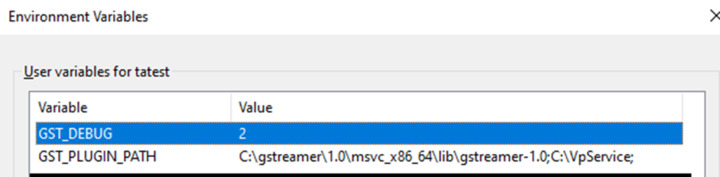
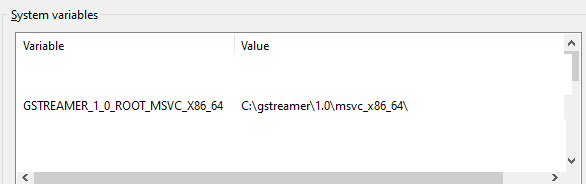
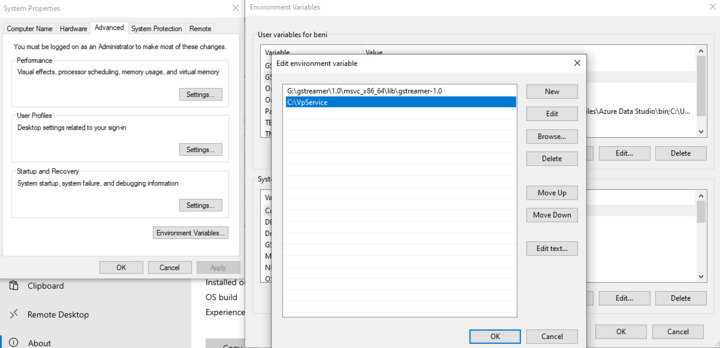
Do you have following in Environment Variables:
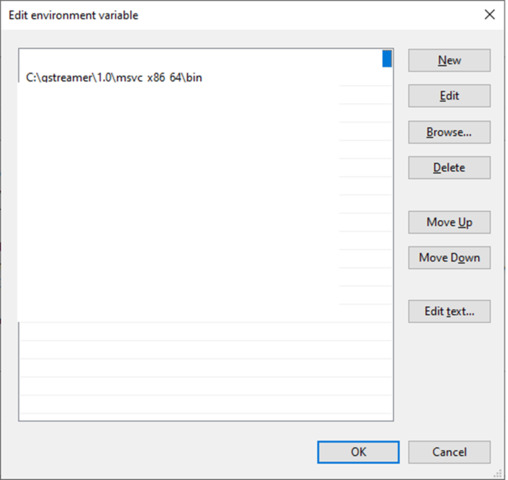
And in System variables ‘Path’ add following: [C:\gstreamer\1.0\msvc_x86_64\bin](file:C:/gstreamer/1.0/msvc_x86_64/bin)
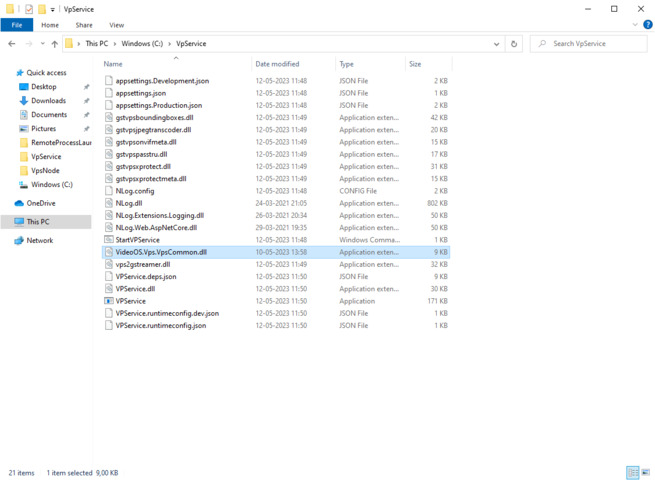
And do you also have the VideoOS.Vps.VpsCommen.dll in the same directory where the rest of dll’s are to VPSService
Hi, thank you for your reply.
I followed the instructions as mentioned above.
Below you can find the screenshots exactly as you described, but I still got the same error. I added this to the Path variable in System variables

![sys_var]()
The output after running “dotnet VPService.dll – -log_debug” inside “C:…\Desktop\mipsdk-samples-vps-main\VPSToolkit\VPService\bin\Debug” folder:
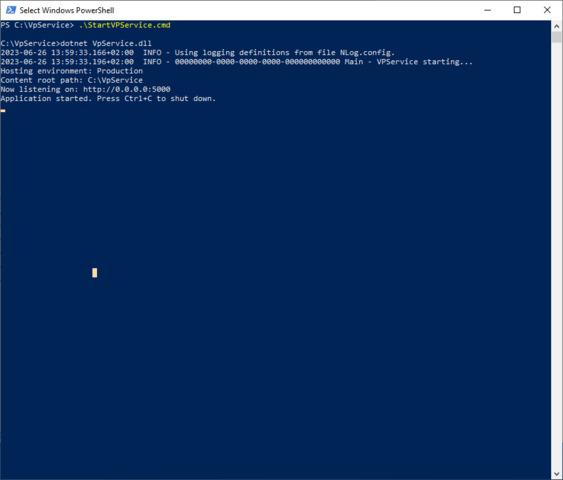
Hi, can you try this compiled vpsService, unzip the file and start a powershell in administrator mode and press startVPService.cmd or dotnet VpService.dll. That is working on my machine.
I am also using this GStreamer installer “gstreamer-1.0-msvc-x86_64-1.22.2.msi”
Hi, thank you for your reply,
I got the same error
It is important that you have setup a path to where you have VpService files in environment variable
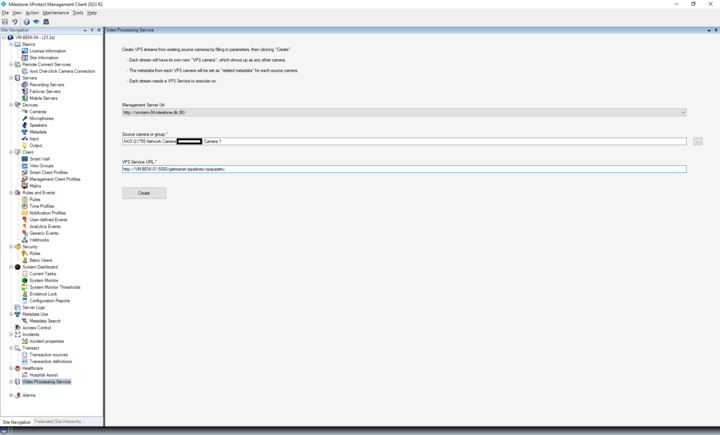
And when you create your VPS in Management Client then use the
computer name and NOT
localhost
http://computerName:5000/gstreamer/pipelines/vpspasstru
Hi, thank you for your answer.
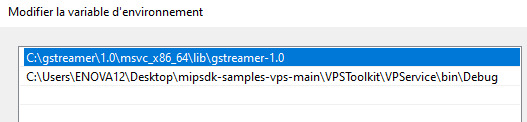
First, this is the environment variable “GST_PLUGIN_PATH”:
and finally, if I understand you correctly, I should replace the localhost with the actual IP address otherwise what do you mean by the computerName ? and what to put in the appsettings.Production.json url?
Thank you so much!
computerName: Localhost shall be replaced with name of the computer where the VpService is running
appsetting.Production.json just leave as it is, you shall only change it if your are using certificates (https)
I’ve followed the instructions as you mentioned above.
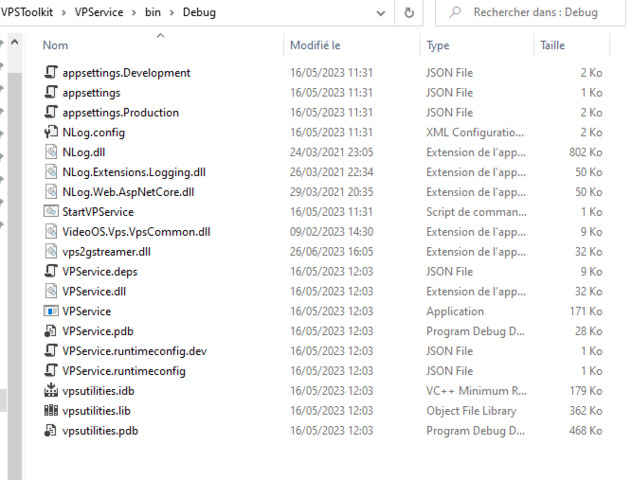
Also, this is the /bin/Debug folder
Unfortunately, I got the same error.
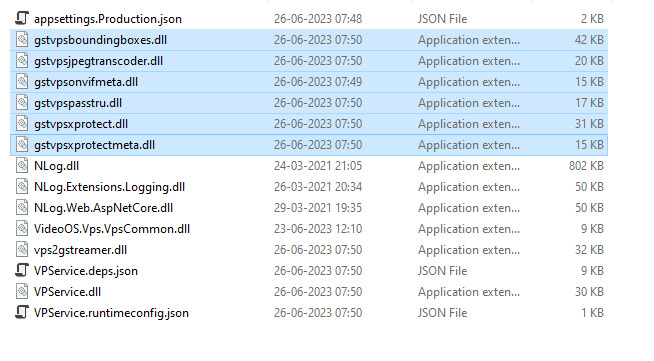
I noticed that I don’t have the gstvpsboundingboxes.dll in my /bin folder.
so I copied it from the folder you shared with me, but still got the same error.
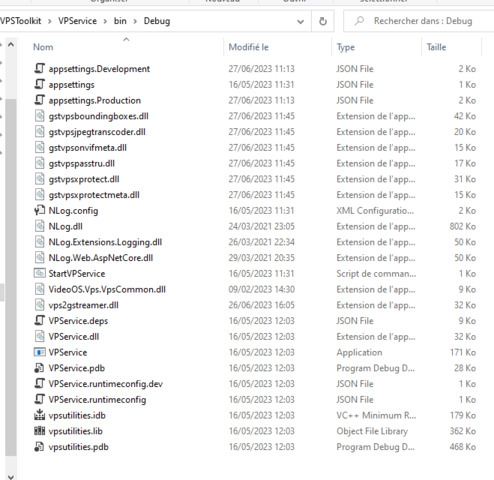
From your screenshot of files in bin/Debug, can I see that you are missing 6 dll files
This is the new folder, but I have the same error unfortunately.
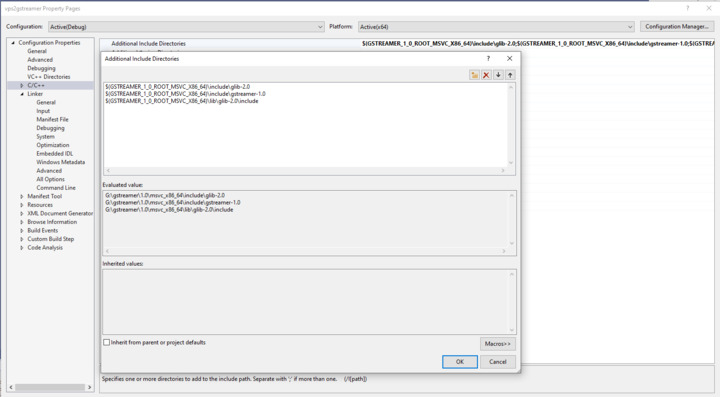
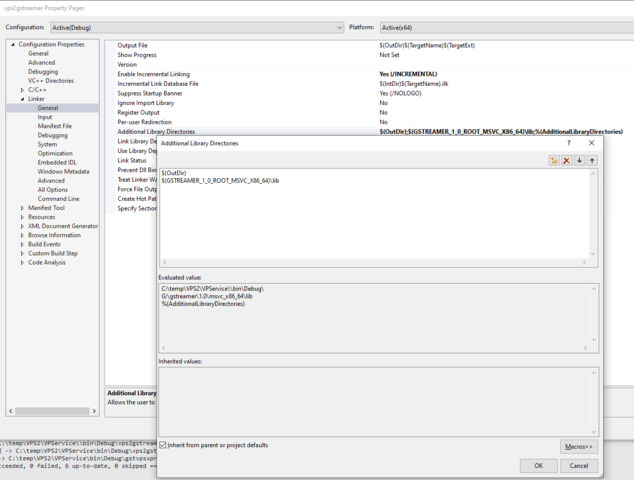
I can see the reference to vps2gstreamer is wrong, do following:
- Right click on vps2gstreamer and select Property
- Change Additional Include Directories in C/C++ to correct reference
- Change also ‘Additional Library Directories’ in Link → General
Do the changes in all projects, then it should be possible to compile all